Perhaps sensing competition in the field of Japan-flavoured arcade racing games, Forza Horizon 6 devs Playground Games have revealed the open-world vroomer’s system requirements. Agreeably, they’re a sensible balance of attainable low-end fare – at 1080p, a GTX 1650 and 16GB of RAM are apparently all that’s needed for 60fps – and the kind of hulking graphics bricks that you’d expect for 4K ray tracing. Only the most baby-oiled of hypercars for the RX 9070 XT owners, you understand, though support for lil’ handhelds like the Steam Deck is confirmed as well.
Nvidia CEO Jensen Huang has decided to try something a bit different in his latest defense of the company's recently revealed DLSS 5 neural rendering tech. No longer does he throw cold coffee in the faces of critics and bellow 'you're dead wrong, and you better give me something on this guy or you're toast'. Instead, he sits on the desk like a teacher playing it casual - saying that he understands where critics are coming from, but still insisting that the tech's benign.
Regardless of whether Intel would say it out loud, the Core Ultra 7 270K Plus and Core Ultra 5 250K Plus both represent an attempt to right the wrongs of the original Arrow Lake/Core Ultra 200S family. That bundle of chips was, necessarily, more power-efficient and cooler-running than the hotheaded 14th Gen models before them, though this came at the cost of hamstrung gaming performance. Rarely a desirable quality in a gaming CPU, that.
These two Core Ultra 200S Plus (or Arrow Lake Refresh) processors do, in comparison, achieve some appeal. They’re inexpensive and excellent multitaskers, and while they do still have efficiency on their silicon brains, Intel have looked to bump game speeds back up by rejigging their innards into a less latency-prone layout.
Alas, it’s not enough. Not only are Core Ultra 7 270K Plus and Core Ultra 5 250K Plus slower in games than AMD’s best chips, they once again fail to convincingly outpace Intel’s own back catalogue – the 2023 vintage 14th gen processors, included.
"Recent sharp price corrections across U.S. and China retail memory channels have pushed DDR5 modules to the center of a broader sell-off, further fueled by market debate surrounding Google’s TurboQuant. The development has raised questions over whether this signals an inflection point for weakening demand," is the analyst outfit's opening salvo in a news post.
Somewhat surprisingly, Trendforce's main source here appears to be some informal reporting by WCCFTech covering the German and US markets, plus a further Chinese source for that market.
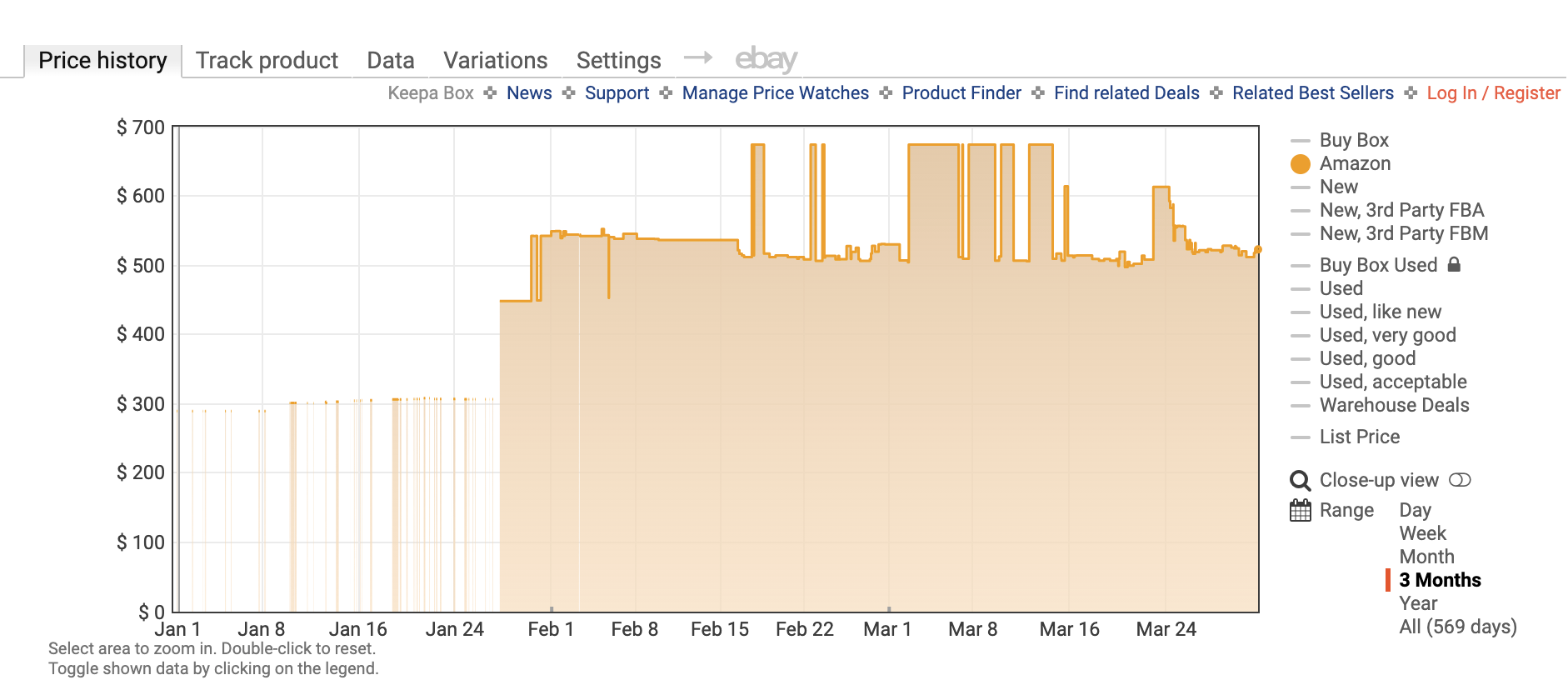
When I trawled the usual online retailers yesterday, I found that some DDR5 kits were indeed lower than their absolute peak during this memory crisis. However, it's hard to argue that the historical price graphs on Amazon show a downward price trend.
Instead, as I said of a particular DDR5 kit, "if you observe the price trend of the 32 GB version of that Kingston kit, you'll see that the price has been essentially oscillating between $657 and around $515 since February, with it mostly being listed at the lower price."
That's true of many memory kits. Indeed, Trendforce caveats all this with the proviso that some industry sources say "contract prices from major memory suppliers have remained completely stable."
Trendforce then concludes, "on balance, the current DDR5 price correction appears to be a consumer-driven, short-term adjustment rather than a definitive signal of structural demand deterioration. Contract prices have so far held firm, and server-side HBM and DRAM demand has remained largely intact, with major suppliers reportedly locked into multi-year agreements with key clients.
"For now, the industry’s long-term fundamentals appear largely unchanged — but whether the recent turbulence proves to be a healthy cooldown or an early warning sign might only become clear in the months ahead."
A notable dip in DDR5 memory kit pricing isn't immediately obvious. (Image credit: Amazon)
But, ultimately, all of this surely hinges on the fate of the AI industry. If it implodes, memory prices will surely collapse. If the hype proves fully founded, on the other hand, it's hard to see memory chips returning to pre-AI prices for years. Watch this space, in other words.
As the ongoing memory crisis continues to make DRAM unaffordable for the majority of us, I'd imagine many are choosing to hold onto what they've got. But can you run a PC with no system memory at all? That's the question that YouTube channel PortalRunner has been investigating, and the answer is...
No, not really. After realising that a new editing server would require considerable amounts of both SSD storage and DDR5 RAM, PortalRunner began by attempting to lower the initial DRAM loadout of a machine to its minimum point.
The first experiment involved tweaking Linux boot parameters to limit system memory to a measly 256 MB (hey, remember when that was a good amount?), but the system failed to initialise (via Hackaday). After some tomfoolery with the boot settings, a 446 MB DRAM limit, and just 4 GB of swap space on a SATA SSD allowed for a successful startup.
Unfortunately, the system ended up being too slow to pass PortalRunner's three stress tests—a browser benchmark, a memory access test, and a Portal 2 bench to test out casual gaming.
This configuration caused the browser benchmark to crawl to a near halt, the memory access speed test to output a miserable 68 MiB/s result (compared to 11,069 MiB/s using a 4 GB RAM control system), and the Portal 2 benchmark to fail entirely, as Steam refused to load correctly. Quelle surprise.
A later experiment involved using graphics card VRAM as a system memory replacement, via a modded swapfile on a GTX 1660 Super. This caused multiple crashing issues, as Linux began killing processes to fit within its constraints, and led to two failed benchmarks and an unbelievably slow browser test.
(Image credit: PortalRunner)
Eventually, PortalRunner settled for modifying a BIOS chip to prevent system DRAM usage and leaning on the CPU cache of an old Intel chip as a memory substitute. This satisfied the initial goal of running a machine with technically no traditional RAM at all, but also limited the system's capabilities considerably.
How considerably? Well, it can technically output a custom-coded Snake clone over a serial port. Briefly. Until the data-providing BIOS chip is removed and the cache is left to its own devices, which causes it to freeze. That's about the bare minimum qualification of a working computer I can think of, but hey, small wins, etc., etc.
(Image credit: PortalRunner)
Ultimately, all of PortalRunner's efforts amount to an excellent explanation of why DRAM is so vital to a modern system, and confirm that you absolutely need some to run a functioning machine by most people's standards. So no, I'm afraid it's not the solution to the memory crisis you might have hoped for. It's good fun, though, and you may well learn something about how your PC works along the way.
Modern software and technologies are often so complex that it's inevitable there will be some glitches or odd behaviours to begin with. In the case of Nvidia's new Dynamic Multi Frame Generation, which all RTX 50-series owners can now use, there is definitely one problem that needs to be addressed.
To get a complete handle on screen tear, many PC gamers prefer to set a frame rate cap a little below the maximum refresh rate. That way the performance always remains with the window that the monitor's variable refresh rate operates, and you get silky smooth frames on the screen.
(Image credit: Nvidia)
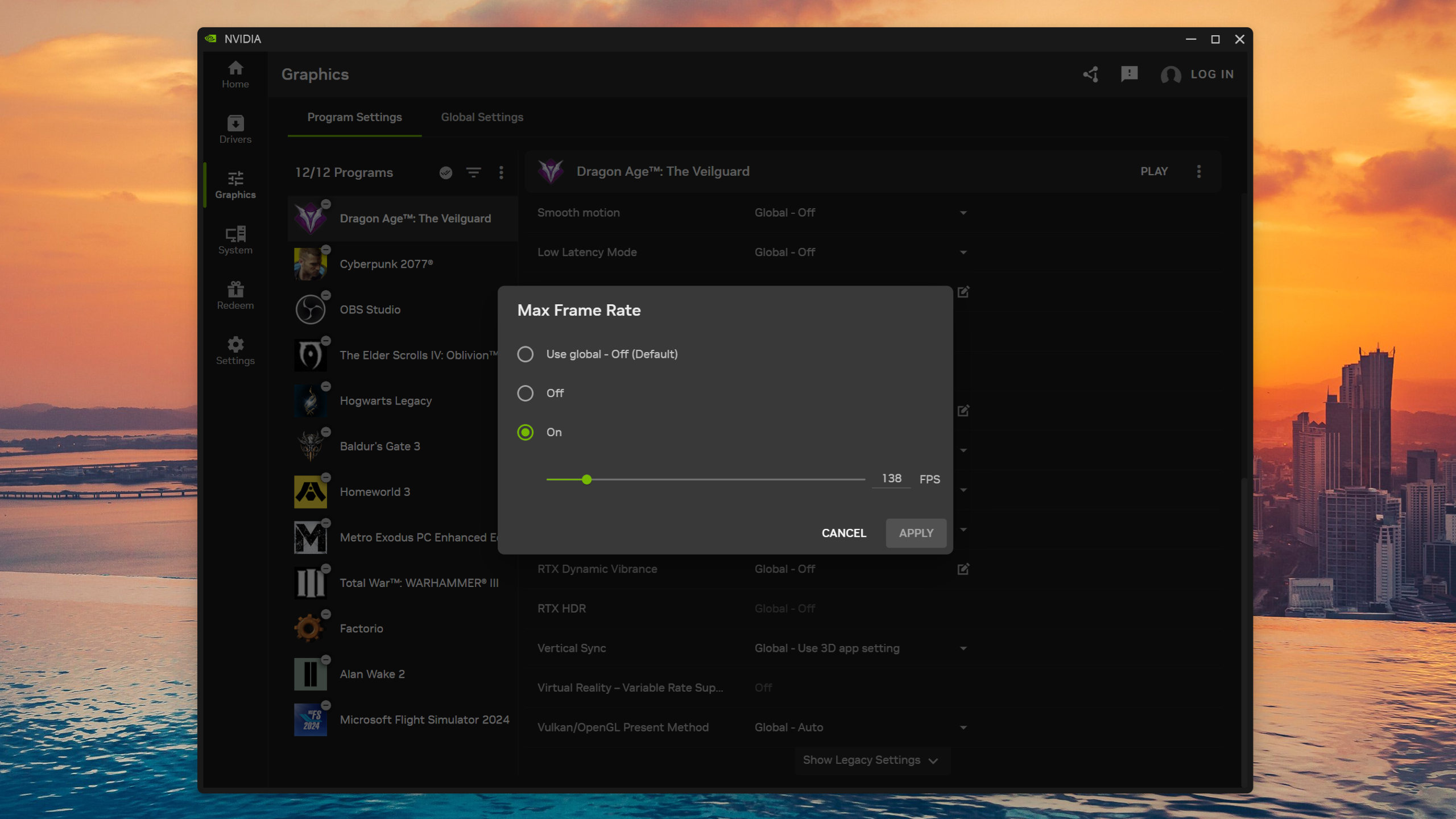
You can do this in some games directly, but it's best to do it via Nvidia's drivers, either in the Nvidia Control Panel or in the global settings of the Nvidia App. Using Dragon Age: The Veilguard, running at 4K with DLSS Quality and the High graphics preset, on a Ryzen 9 9950X3D and RTX 5070 combo, I found that Dynamic MFG fully behaved itself when used without any limit to the frame rate.
That said, it also lets the performance completely overshoot the refresh rate. However, when I set a cap of 138 fps in Nvidia App, Dynamic MFG decided that it didn't want to play ball and just ran in 6x mode all the time.
While the performance you get is fine, the reported PCL figure certainly isn't. When using DMFG without any limit to the frame rate, it comfortably sits around the 30 millisecond mark, which is nice and smooth to game with. With the 138 fps cap, though, the PCL jumps to around 50-60 milliseconds, which certainly isn't smooth.
I've tried a variety of different settings in the game, but in all cases, when using a frame rate cap in Nvidia App, Dynamic MFG just locks to a fixed mode. In one example, it always stayed in 3x, which was okay to game with as the PCL remained under 40 milliseconds.
This could be a bug or just a limitation of how Nvidia's Dynamic MFG all works. Hopefully, it's the former, because that means there's a chance it could be fixed at some point in the future. If it turns out to be a limitation of the system itself, then you'll want to stick to the standard Multi Frame Generation if you always use a frame rate cap.
I've also seen some reports that DMFG doesn't like certain performance overlays, such as MSI Afterburner/RTSS, but having tested that in a few games, it doesn't appear to be an issue. In Cyberpunk 2077, Dragon Age: The Veilguard, Oblivion Remastered, and Hogwarts Legacy, RTSS displays correctly, and Dynamic MFG works as intended.
That doesn't mean there aren't games where RTSS and DMFG don't play happily together, and if you're currently experiencing such issues, flag 'em up below in the comments.
Primate Labs says that Intel BOT "only supports a handful of applications, meaning BOT-optimized benchmark results paint an unrealistic picture of how a CPU performs in practice. This makes Intel processors appear faster relative to AMD and other vendors than they would be in typical, real-world usage."
Primate Labs actually carried out their testing on a Panther Lake laptop rather than one of the new Arrow Lake Plus chips. Turns out Intel's Panther Lake CPUs also support BOT, something Intel didn't initially flag.
Anywho, Primate Labs says, "Intel’s public documentation on BOT is limited, so we decided to dig in ourselves to understand how it works and what optimizations it’s applying to Geekbench."
Primate Labs claims it discovered that BOT is going well beyond Intel's characterisation of how the software operates.
"Based on the instruction counts, it’s clear BOT has performed significant changes to the HDR workload’s code. The number of total instructions is reduced by 14%. Most of that reduction comes from BOT vectorizing parts of the workload’s code, converting instructions that operate on one value into instructions that operate on eight values.
"This is a significantly more sophisticated transformation than simple code-reordering. Intel’s public documentation only discloses the simpler code-reordering techniques, not the vectorization transformations observed here," Primate Labs says.
If Primate Labs is correct, that's certainly something of a concern. To quote myself from last week, "my understanding is that what Intel's BOT is doing essentially amounts to re-ordering instructions so that they fully utilise the Arrow Lake Plus pipeline. All the actual calculations are the same. In other words, enabling BOT doesn't mean skipping any work."
Intel likens BOT to a game of Tetris where instructions are more optimally ordered. (Image credit: Intel)
I said that based on Intel's description of how BOT works, but if Primate Labs is correct, there's quite a bit more going on. Primate Labs also found that BOT adds a time penalty to application start up. "When running Geekbench 6.3 with BOT enabled, the first run has a 40-second startup delay before the program starts. Subsequent runs are faster, with a 2-second startup delay. The startup delay disappears when BOT is disabled," the blog post explains.
Ultimately, this all comes down to how many applications end up supporting BOT. My understanding is that application support will require Intel's Labs specifically doing optimisation work and adding the results of that to the tool. Quite how many apps Intel will choose to optimise is unclear, but the fact that BOT is never going to just work with any given app is a clear negative. Primate Labs probably has a point here, therefore.
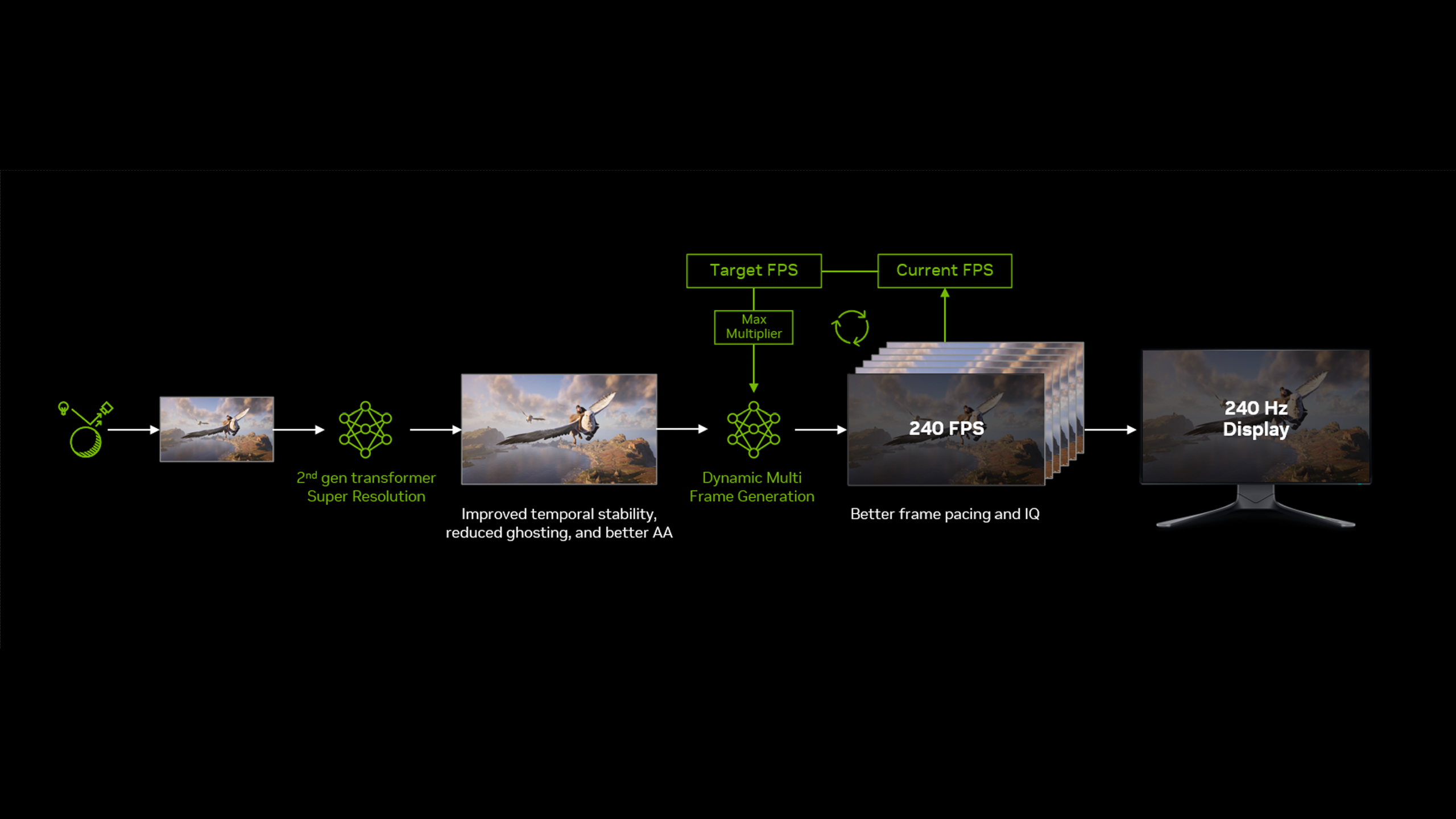
The Nvidia App beta has been updated to include DLSS 4.5 Dynamic Multi Frame Generation support for RTX 50-series owners. The much-anticipated tech allows for dynamic adjustment of AI generated frames based on a target frame rate, with the goal being consistently smooth, high fps gameplay.
The tech allows for up to 6x frame generation, which is a considerable boost over the 4x maximum of previous efforts. Our Nick has been testing the tech recently and has come away somewhat impressed, although there are caveats to maxing out the number of generated frames, particularly on lower spec cards.
DMFG can be either activated as a global option, or per individual game via the Graphics tab in the Nvidia App. The app can be configured to sync up with your monitor's refresh rate, or configured to a custom max frame rate for those who like to tweak the settings.
A new DLSS Frame Generation model (for RTX 40-series and 50-series cards) is also included with the update, which aims to take into account UI screen elements and provide better stability of frame-generated images when interacting with onscreen overlays and text.
(Image credit: Nvidia)
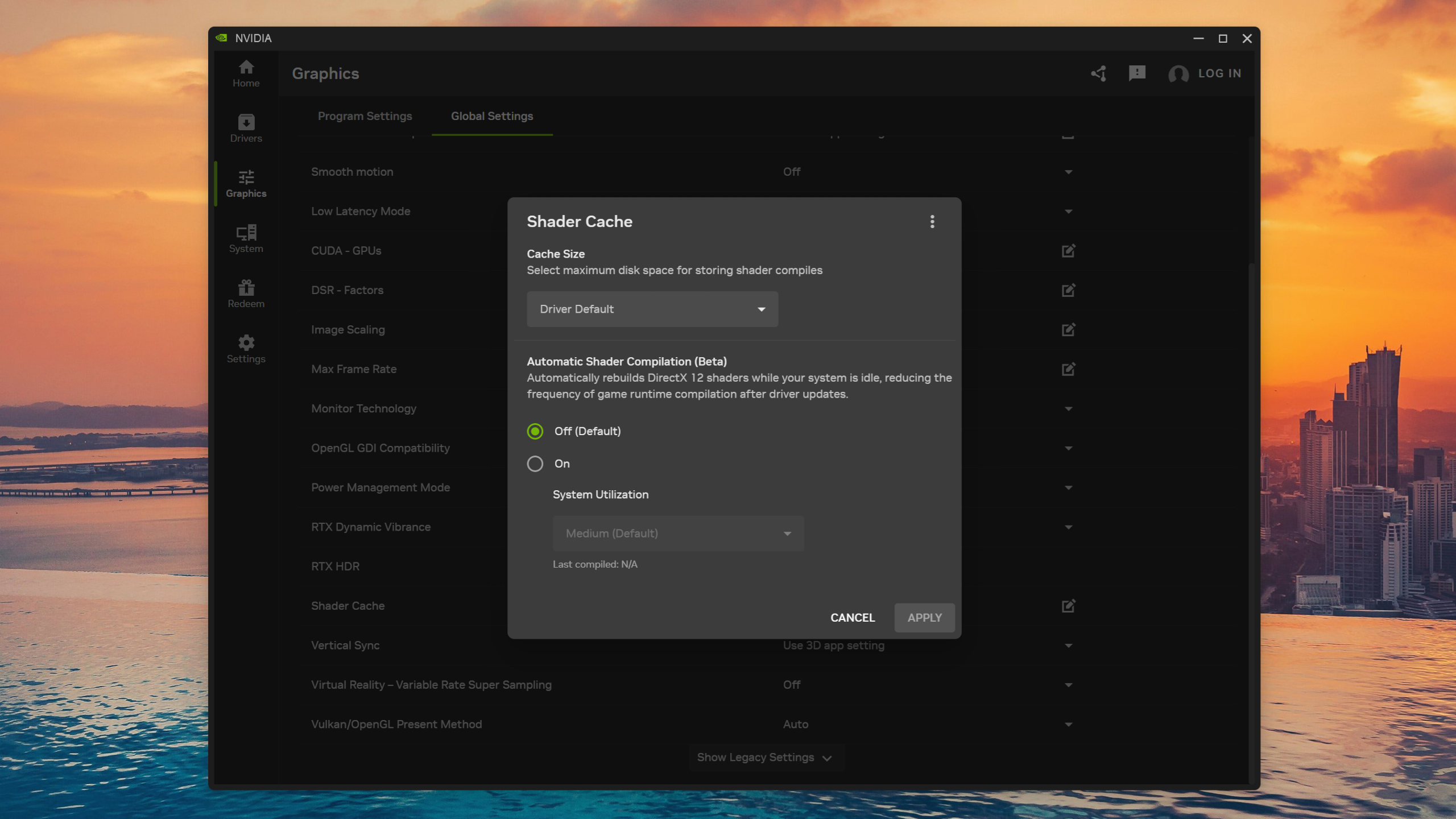
The update also adds a beta preview of a feature called Auto Shader Compilation, which attempts to rebuild your DirectX 12 game shader cache after a driver update during system idle time.
With more and more games avoiding stuttering issues with an initial shader compilation pass, the feature aims to cut down on a complete rebuild of the shader cache for every game after every driver update. As Nvidia has been firing out the hotfixes for its drivers at a rapid rate over the past few months, the beta preview of this particular feature seems timely.
Users will need to opt into the beta version of the app within the Settings>About page to test it out, and will need GeForce Game Ready Driver 595.97 to take advantage of all the new goodies.
I've been having a grand old time running around Crimson Desert's gigantic open world, picking up sheep, committing crimes, and generally making a nuisance of myself to the good citizens of Pywel. I've been playing it since launch day, in fact, which is why I'm not surprised I've found myself awash among a sea of graphics-related issues.
Chief of which, to my mind at least, is the absolutely godawful Ray Reconstruction performance. The problem here is that it's tied to the lighting setting, which means enabling it forces the ray tracing to its absolute maximum—and it absolutely tanks the frame rate as a result.
I'm talking less than half the frames with the setting enabled compared to one step below, using an RTX 5070 Ti. But hey, you can always turn it off, right?
Sure, and thanks to some recent patches, the "neon-green grass" issue with RR off and the lighting set to one step below maximum looks to be much improved.
Aside from some much nicer-looking trees, my brief testing with the most recent version seems to indicate there's not a massive difference anymore between the settings when roaming the open world—as opposed to release, when RR sometimes made it look like a totally different game.
Image on the left is with Cinematic settings, Ray Reconstruction on, lighting forced to Maximum. On the right is Cinematic settings only.
However, with Ray Reconstruction off and the lighting set to Cinematic (where the ray tracing is left at a performance-friendly level), I've been experiencing some very odd visual bugs, particularly with shiny objects.
And by bugs, I mean some horrendous-looking armour. This would be fine if you weren't wearing it all the time, but as a Crimson Desert helm-enjoyer, I'd rather some of the armour models looked like the shiny, boutique objects they're supposed to be rather than low-poly PS4 assets—and it's not just me that's experiencing the issue. Allow me to demonstrate:
Image on the left is with Cinematic settings, Ray Reconstruction on, lighting forced to Maximum. On the right is Cinematic settings only.
Yeah, that's pretty damn ugly by comparison. This is with motion blur off and my character standing mostly still (albeit with an idle animation), too, which suggests something real buggy is going on here. All of this has been recorded using the latest Steam patch, which promises to fix some of the visual nasties. Top of the list is Ray Reconstruction blurriness, apparently.
To be honest, I hadn't noticed the ray-reconstructed image to be particularly Vaseline-like in actual gameplay. In fact, I'd say that Crimson Desert's image quality is particularly noisy overall, no matter the settings. This is made worse by the fact that, to get it to run well at 4K with Ray Reconstruction on, I've resorted to enabling DLSS Performance mode.
That's not normally a huge issue for me (I'm running an RTX 5070 Ti after all, not an RTX 5090), but given that the ray traced lighting is based on the pre-upscaled (low-resolution) output, it sure makes for some noisy moments once the upscaler gets involved.
Check out the pronounced "boiling" effect around Kliff's floppy sleeves and silhouette in the clip below to see what I mean.
I've had plenty of experience with DLSS running in Performance mode through its various iterations, and this game's visuals seem to give it the most trouble. A previous patch changed the DLSS Ray Reconstruction preset from D to E, which supposedly fixed some displacement mapping issues, improved the overall quality of the visuals, and fixed some texture animation quirks.
And to my eyes it looks... a bit worse, actually. The new preset seems to struggle with fast movement at Performance settings—and given that turning down the lighting by a single step seems to do a number on the shiny stuff for myself and others, and that we'll likely be enabling RR and using DLSS to compensate, it's a bit of a poor show overall.
It's all very... messy. Still, the recent patches have fixed a host of other issues, and the game is, in my opinion, a whole ton of fun. Ordinarily, this sort of setting juggling and visual artifacting would spoil my enjoyment of a game, but there's so much bizarre creativity to enjoy in Crimson Desert, I'm powering on regardless with a big grin on my face.
Given that Pearl Abyss seem to be making a herculean effort towards patch support, I've got my fingers crossed that there are more visual and performance improvements yet to come. Here's hoping, at the very least.
The UK's Telegraph newspaper is claiming that "spending cuts at OpenAI have hit memory chip prices." That sounds like potentially good news on several levels. But does it stack up?
Broadly, OpenAI is seen as cutting back on costs. Whether that's because the money is actually running out or, in fact, OpenAi wants to polish its books before a stock market flotation that's been mooted for later this year is an open question. But spending at OpenAI has undeniably been cut and that likely means at least some reduction in demand for memory chips, which has been running at record levels.
The Telegraph points out the market analyst Trendforce has tracked memory chip prices rising by 700% over the past year. That's obviously been reflected in ballooning costs for PC components like DDR5 RAM kits.
But the Telegraph notes that DDR5 memory kits on Amazon have dropped by as much as $100 from their AI-fuelled peak. Scanning through some of the kit prices I tracked late least year, and the picture is mixed.
This Corsair 32 GB kit, for instance, is now $370, down from the $410 it hit in December. This Kingston 16 GB kit, meanwhile, peaked at $350 and can now be bought for $261, albeit it has usually been unavailable.
However, if you observe the price trend of the 32 GB version of that Kingston kit, you'll see that the price has been essentially oscillating between $657 and around $515 since February, with it mostly being listed at the lower price.
Certainly, it's hard to look at the historic price graph for that kit and conclude that the price is now falling. To be honest, you wouldn't expect that even if OpenAI's recent cutbacks are having an impact on memory chip prices. It would take longer than that to feed into PC memory kit prices.
Of course, equally it's hard to know how much of current price rises for computing hardware are down to real supply and demand constraints as opposed to panic buying and price gouging. If it's largely the latter, then it might not take much more than a change in market sentiment thanks to OpenAI's cut backs to see memory pricing tumbling.
However, if the price rises are more structural than sentiment-based, then it will likely take more than OpenAI becoming more circumspect with its spending to normalise the DDR5 market.
A clear dip in DDR5 memory kit pricing isn't immediate obvious. (Image credit: Amazon)
Indeed, the narrative of late has been about an expansion of the supply crunch to include CPUs as the AI industry moves from its initial development and training phase into compute loads that are more inference and agentic. That will shift some of the details around component demand. But not memory. Whether you are training, inferencing or inferencing at the behest of agentic models, you're going to want plenty of money.
All of which means that the Telegraph has probably jumped the gun on this one. There are just so many other demand-driving vectors in flight right now when it comes to the AI boom, it would certainly be premature to conclude that one single factor—OpenAI reducing spending—was going to have a tangible impact.
We've long been sceptical of 8 kHz polling here at PC Gamer. At least based on how it feels experientially, provided I'm using a good mouse with a solid connection, there feels like very little difference between 8 kHz, 4 kHz, 2 kHz, and heck, even 1 kHz polling. But felt experience, while important, isn't the most objective and accurate measurement. What is a lot more objective is a simple spreadsheet tool (version 0.6) that tech and gaming YouTuber BaldSquid recently cooked up.
It does involve some manual work, but all the math has been done for you, so all you have to do is fill in your polling rate and your frame rates, and the spreadsheet should spit out the increase or decrease in input latency that you're getting. The math actually seems fairly simple each step of the way, but putting it all together makes things much easier than trying to figure it out manually.
(Image credit: Future)
First, save the spreadsheet to your own Google Drive by going to File > Make a copy. Then run a manual benchmark, perhaps using something like Nvidia FrameView to record your framerates, making sure you're moving your mouse around in-game while you do so. Then, do the same but with your mouse at whatever polling rate you want to compare it to, and try to move your mouse the same amount as you did the first time.
Once you've got your results, you can input your average and 1% low frame rates into the spreadsheet, and the spreadsheet will do everything else for you. Essentially, it will tell you whether the latency benefit you get for increasing your polling rate offsets any potential decrease you see in frame rate, when it comes to visible mouse latency.
If you double your polling rate, your input latency will be reduced, and how much of a reduction you get is shown in cells A18 and A20 in milliseconds. But if you lose frames, you have a "visual penalty" which can increase felt latency. How much of an increase in visual penalty you get is shown in cells B18 and B20, also in milliseconds. The net benefits on the right show you whether the former makes up for the latter, and by how much.
Ultimately, what you see in cells D18 and D20—the former showing you a best-case scenario, the latter a likely average scenario—is what matters. A green positive number means a reduction in latency by that amount, and a red negative number means an increase in latency by that amount. If it's red, it might not be worth it.
One thing you'll probably immediately notice is that we're only dealing in sub-millisecond improvements here.
There are a couple of caveats to all this. The first is that we have to remember we're not comparing apples to apples. The decrease in input latency that you get from increasing your polling rate should technically persist regardless of what your frame rate is, because games should register input even between frames. But it's going to feel like increased latency if you're only seeing those shots fire after they've actually registered, so it's still a useful comparison.
(Image credit: Future)
There's also the fact that refresh rates aren't being considered in the tool. If you're at 60 Hz and getting 240 fps, you're not going to feel all of the benefit of any reduction in input latency. The tool's results will map onto your perceived reality best when your frame rates are at or under your refresh rate, and the disparity between numbers and reality will become bigger the lower your refresh rate is.
And, of course, the tool makes no account of the impact on battery life, which simply depends on how much you value it. I suppose you could add on your own cells that throw battery life into the mix, but testing there would take a while. In general, though, doubling your polling rate halves your battery, and going from 1 kHz to 8 kHz cuts it by 8x.
All these caveats aside, the tool's very useful to get a quick and dirty idea of whether you're getting any visible benefit from increasing your polling rate, and roughly how much.
With both TMR and Hall effect controllers coming down in price, the question is no longer 'is Hall effect worth it?' but 'is it cheap enough to not just upgrade to TMR?' And I've had that question in my hand over the last few weeks, comparing the EasySMX D10 and D05 head-to-head. After that time, I can say the answer is 'it depends'. I know that's an unsatisfying answer, but reality is rarely straightforward.
The D05 comes in a single colourway on the official site (with a few more colours on Amazon), but luckily, I like it. It's all black, except for a golden D-pad and golden triggers. The bumpers, notably, are a similar black to the face buttons and joysticks, and the whole thing looks both rather flashy and fairly clean. The included charging stand is relatively basic, in contrast, being black all over with 'EasySMX' written on the front.
However, once plugged in and on, the controller kicks into life and becomes even showier. There is a set of RGB lights underneath each thumbstick. The black plastic has a fair amount of light leakage, fitting somewhere between a normal controller and the aesthetics of that old, see-through Xbox. Light leakage, when paired with RGB, can sometimes look a little cheap, but the D05 mostly pulls it off.
That's all helped by the fact that the controller itself feels sturdy and comfortable in the hands. It's very clearly based on the Xbox Series X controller, with asymmetric sticks, textured grips, and Xbox's iconic shape. EasySMX has done a great job here, feeling almost identical to one of Microsoft's controllers, barring the extra weight.
EasySMX D05 specs:
(Image credit: EasySMX)
Compatibility: Windows, Switch, Android Connectivity: Wireless (2.4 GHz and Bluetooth) and Wired Ports: USB Type-C Thumbsticks: Hall effect Polling rate: 1,000 Hz Triggers: Hall effect Thumbstick layout: Asymmetrical RGB: Yes Battery life: 10-20 hours Extra features: Two reprogrammable buttons, included charging dock Weight: 219 g (300 g with dock) Price:$45 | £35
At 219 g, the D05 is certainly fairly light, but it has no flex and only really gives away its very budget price in a slight rattle. In fairness, it only produces a rattle when shaken, so it rarely comes up in use. For the most part, it punches above its weight in look and feel.
Solid build quality feels like the cherry on top of the cake here, when you are getting a 1,000 Hz polling rate, a charging dock, three connectivity modes, and Hall effect triggers and thumbsticks for less than the price of Sony and Microsoft's offerings. The D05 is already regularly available for just $35 over on Amazon, at the time of writing, and I'd struggle to find anything better for its current price, except maybe the D10 over here in the UK, where it gets down to £30.
The 8BitDo Pro 3, my usual everyday controller, has a great aesthetic, a neat charging dock, and TMR thumbsticks. It's also just under double the price, and comes with a polling rate of just 250 Hz (a quarter of the D05). It's not even that far off the price of the GameSir Nova Lite, which is our current pick for the best budget controller, and comes with a whole host of premium features to justify the extra cost.
Comparing the EasySMX D10 and D05 together, it's not immediately clear to me which one is better. The stand and in-box presentation of the D10 is certainly flashier, and the D10 has TMR thumbsticks, alongside dual-mode triggers (Hall effect and non-linear micro-switch). But I actually prefer the aesthetic of the D05; it comes in tens of dollars cheaper, and I like its D-pad more. If you need TMR, the D10 is the only choice between the two worth considering, but if that's not the case, both put up a fight.
EasySMXEasySMXEasySMXEasySMXEasySMX
The four-arrow D-pad is easy to use, and though it doesn't have a super-defined click, I rarely found myself misclicking. The triggers are also very solid, with a smooth press and textured tops. I spent honestly far too long throwing out coins with the triggers in coinpusher roguelike Raccoin, and found myself with very little fatigue, even after hours.
Moody horror FPS Crisol: Theatre of Idols performs well, too, in this regard. Triggers are satisfying to click, and the thumbsticks are easy to control. I rarely struggled to hit baddies in the head, and when I miss, I struggle to blame the controller for it.
I did notice the face buttons are oddly textured. There's a fairly deep groove indicating which button is which. Those grooves are so deep that I can regularly make out which button I'm on, with just my thumb. This can also make them dust and grime magnets, which is a problem that controllers already suffer heavily from. After a little time, I did get used to these heavily etched buttons, but it's certainly an oddity.
I did find the controller to accommodate the fast clicks and reliance on face buttons in the Soulslike action RPG No Rest for the Wicked. Combining all of the above, the D05 took on the challenge of precise actuation and tight controls in Rocket League with ease. In play, I found it lacking in almost no regard. It even has two back paddles, which can be easily customised with the controller's built-in function button.
EasySMXEasySMXEasySMXEasySMX
Arguably, the cheapest part of the controller is its charging dock. It's simply a black box, with a USB Type-C and Type-A port on the back, and charging prongs on the top. It's missing the RGB and recessed 2.4 GHz connector port of its more expensive controller cousin, but its only real fault is feeling a tad plasticky. The 2.4 GHz does sit out at a slightly awkward angle in the back, but the likelihood of showing off the back of the stand is very slim either way.
Buy if…
✅ You're sick of stick drift: With Hall effect thumbsticks, this is a relatively cheap way of getting around stick drift.
✅ You forget to charge: The D05's included charging dock is simple but effective, and encourages me to charge it basically every time I'm not using it.
Don't buy if…
❌ You want better than Hall effect: The EasySMX D10 isn't a whole pile more, and comes with TMR sticks. In practice, I didn't find the D10 to be better to control, but it's close enough in price to be worth considering.
❌ You want something more muted: Though you can turn off the RGB, the gold trim is certainly a little flashy.
One peculiarity with the D05 (and D10 by extension) is that they both lack any PC software. With the function button, you can change RGB intensity and colour, as well as customise vibration, and you can even adjust actuation in the triggers for a rapid trigger mode, but you will have to learn all of its function controls to get the most out of it. While it's mostly fine to use without any dedicated software, it would be more convenient to have a PC app or browser-based interface to configure it all.
The D05 gets between 10 and 20 hours of charge, depending on vibration and RGB level, and for me, that is more than enough. The charging stand's convenience means I regularly got into the habit of popping it on charge every night, and I've never seen it go dead.
Despite trying to broadly emulate the Xbox Series X controller, I think there's an argument to be made that it's actually a better package. For approximately half the price, you are getting stick drift resistance, that charging dock, quadruple the polling rate, a solid enough battery life, a neat aesthetic, and a whole host of extra features. It's not quite as firm in the palm, and its weight isn't as fine-tuned, but I can't name a single other controller at the $35-$45 price range I'd be picking instead.
What hacker wouldn't also enjoy escaping dungeons and rescuing princesses? That rhetorical assumption seems to have guided the thought behind Press-Play-On-Tape's Prince of Arabia, an Arduino port of the original 1989 Prince of Persia that's now been ported to the Flipper Zero. Why? Simple: as Flipper explains, "just because they could."
The Flipper Zero is a little cybersecurity tool that has, over time, also grown its own catalogue of apps, not all of which are security-related. Which makes sense, given it's all open-source and customisable. And yes, if you were wondering, it does run Doom. As does just (1) about (2) everything (3) these days.
Originally released in 1989 on the Apple II, this is a port of Prince of Persia running natively on Flipper ZeroCheck out the source code here: https://t.co/MVcG6FKcFcDownload it from Flipper Apps here: https://t.co/vt5DgKrTTwIt's the full one-hour game, with a remade… pic.twitter.com/s1A8iGQwLUMarch 27, 2026
But although it's been ported to tons of proper platforms, Prince of Persia hasn't had the run that Doom has had in terms of niche hardware ports, which gives this one a little novelty to it. I doubt the 1989 game, originally made for the Apple II, is much more intensive to run than Doom, however, rotoscoped though it may be, so perhaps we'll see Prince of Persia making it into earbuds and vapes before long, too.
It looks like all you have to do is download and install it via the Flipper Lab, and it should just work. The platformer works on-device, on PC via USB, and even on screen via HDMI cable if you have the Video Game Module.
I'll be waiting for Sands of Time, myself, for my own hit of nostalgia. But I'm not sure that early-2000's game would make the cut for a port to such minimal hardware as a Flipper Zero's STM32WB55 microcontroller. A Raspberry Pi 5 might be in order for that one.
Regardless, if you own a Flipper Zero, then maybe between scanning RFID and injecting keystrokes on the family computer to spook your spouse (don't do that), you can level up those pre-2000's platforming skills. A noble pursuit, I'd say.
Earlier this month, Nvidia announced that RTX 50-series owners would soon be able to use an improved version of Multi Frame Generation (MFG) in games, one that could dynamically switch between modes, including a new 6x option. After our first glimpse of it at the CES show in January, we've now had a chance to test it all out ourselves.
As a very quick recap, DLSS MFG works by having the graphics card render two frames normally, but keeping them both in VRAM. Then, through the power of AI, the GPU interpolates at least one frame that effectively slots in between the two (giving you 2x frame gen mode). Once that's been generated, all three frames get displayed in sequence, and the whole process repeats itself in the background.
The multi part in MFG refers to the fact that the generative stage can generate two frames (3x mode), three frames (4x mode), and with this latest update, five frames for 6x mode. Before you ask, no, there isn't an option to force a 5x override mode, even though Nvidia's MFG supports it.
Anyway, alongside the fixed override options is a new setting that lets DLSS MFG figure out what mode is best to use, based on your monitor's maximum refresh rate and the performance of the game—i.e. Dynamic Multi Frame Generation. For example, if you have a 240 Hz display, DLSS will switch between the various modes to keep the frame rate as close to 240 fps as possible.
NvidiaNvidiaNvidia
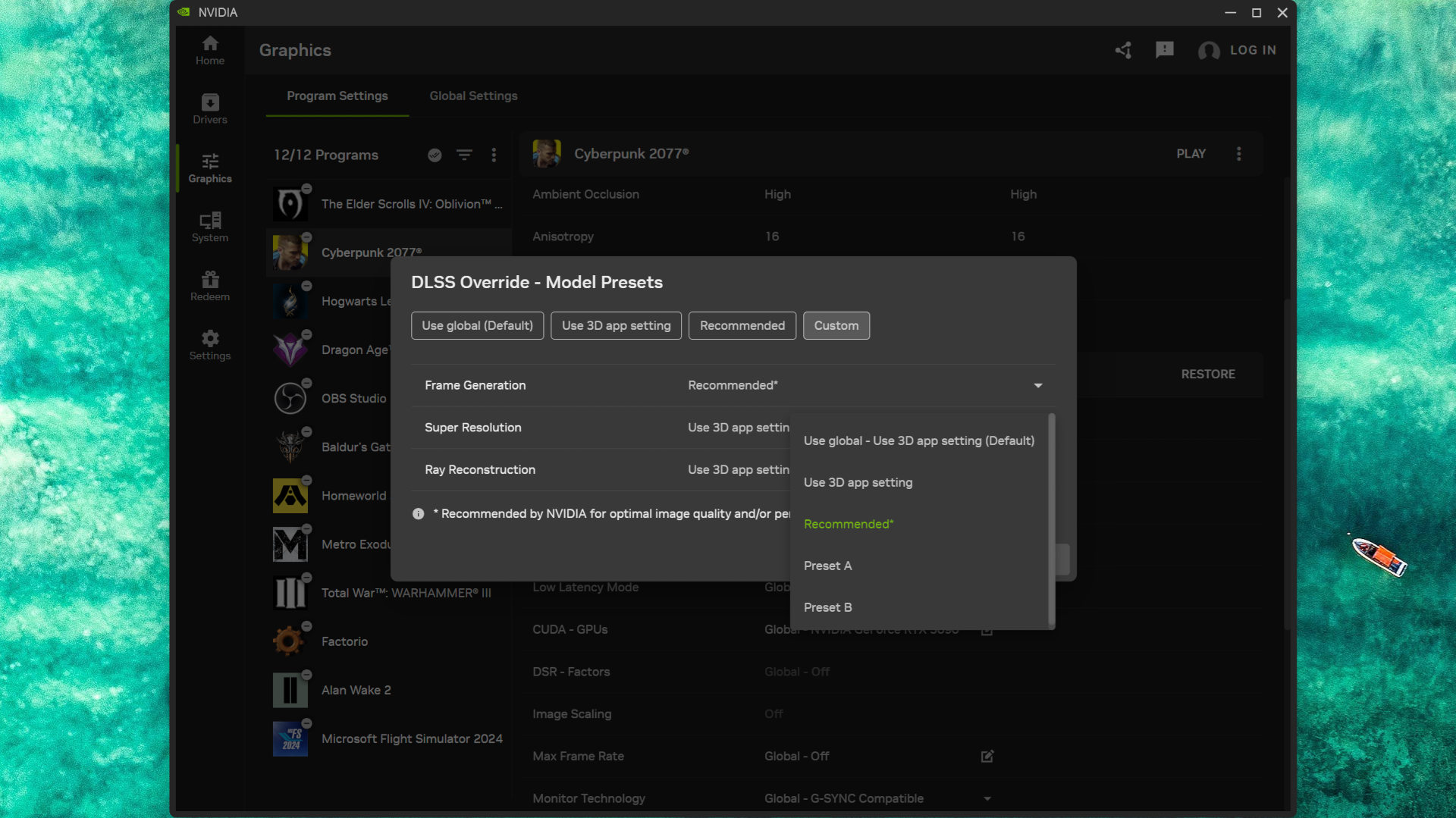
The new version of DLSS MFG also includes an updated AI model (aka Preset B) that "enhances in-game user interfaces by incorporating additional game engine data, improving visual quality and clarity of static user interface elements."
However, Nvidia notes that the new model "can only provide a benefit to games which expose a UI depth buffer, so it won’t work on all games, and not all supported games show significant improvement."
(Image credit: Nvidia)
Two examples of games that do support it are Hogwarts Legacy and Dragon Age: The Veilguard, though there are only 20 games in total that you can use Preset B with; everything else will just use the standard 'Preset A' model.
Anyway, none of this matters if the dynamic system doesn't work as intended or if the new model actually makes things worse. So let's get on and see it in action with a Ryzen 9 9950X3D and GeForce RTX 5090 combination, and an MSI MPG 321URX 240 Hz OLED monitor for handling the display duties.
Cyberpunk 2077
RT Overdrive | 4K DLSS Performance | No frame gen
To begin with, let's start with a 'ground truth' run of Cyberpunk 2077 at 4K, with RT Overdrive and DLSS Performance enabled (DLSS Ray Reconstruction disabled), to see what kind of frame rates we get. Nvidia Reflex is also disabled to get a sense of the baseline input lag.
I've used an updated version of Nvidia's Frameview (top left), along with a similarly updated Nvidia App statistics overlay (top right), to show accurate real-time performance figures, as well as information about the use of frame generation and the overall system latency (PCL).
As you can see, although the PCL figure is nice and low (so no discernible input lag), and the overall frame rate is around the 60 fps mark, the game comes across as being a little janky. This isn't the video; the game really does look that way in real life, because there's nothing other than the game controlling frame pacing (i.e. when frames are timed for display).
Now let's see it again, but this time with 4x Multi Frame Generation enabled in-game. You could use the Nvidia app to override it to 6x (FG needs to be activated for any override to work), but for now, let's just stick with 4x.
Cyberpunk 2077 runs a lot smoother with this level of frame generation, because the use of frame gen enables Reflex (which gets a better handle on the frame pacing), but unfortunately, the PCL is also a lot higher, and swinging the camera around feels a little sluggish. Not massively so, and certainly not enough to make the game unplayable, but it's certainly noticeable.
The above video shows another test run, but this time with Dynamic Multi Frame Generation enabled. Since native 4x mode couldn't achieve a constant 240 fps (it couldn't reach it full stop), it's no surprise to see that DFMG switches to 5x mode for a good portion of the test run. However, it's quite happy to drop down to 4x—240 fps is a target, not a hard restriction.
However, the slight increase in noticeable input lag with the in-game 4x frame generation is more apparent when DFMG switches to 5x, and you can see this clearly with the rise in the PCL to around 50 or so milliseconds. Again, it's not a game-breaking issue, and it's something that simply cannot be avoided with frame gen.
Since Dynamic MFG didn't need to switch to the new 6x mode, I did one more run with it enabled as a fixed override. It's interesting to note that the PCL isn't much worse than with DMFG's 4x/5x modes, and the average frame rate is even higher. However, the stuttery feel to Cyberpunk 2077 without frame gen makes a reappearance here, and that's possibly down to the sheer number of frames that now have to be paced correctly, or just something about my set up that doesn't like this level of frame generation.
Dragon Age: The Veilguard
Ultra | 4K DLSS Performance | No frame gen
Moving on to Dragon Age: The Veilguard, we start once more with a standard run at 4K Ultra DLSS Performance and no frame generation. This game runs pretty well without the aid of generated frames, though the average frame rate doesn't get anywhere 240 fps.
However, the system latency is a tad high for something averaging 130 frames per second, but DLSS is well implemented in Veilguard and enabling 2x frame gen in the game's settings produces an unexpected outcome: The PCL figure is lower.
Ultra | 4K DLSS Performance | In-game 2x FG
The reason for this is almost certainly down to the fact that the use of frame gen requires Nvidia Reflex to be enabled (which isn't for any of the baseline no-FG videos I've created). This system gets rid of the frame queue so that the CPU only prepares and issues a rendering command sequence when the GPU is ready for it.
If the GPU is quite busy trying to churn out a barrage of frames from the CPU, this synchronisation of CPU and GPU results in a lower PCL.
Frame generation in 2x mode produces an overall frame rate pretty close to 240 fps, which is why the use of Dynamic MFG doesn't change things. It stays in 2x throughout the test, giving you the input latency and performance that you need. This is a good thing, because when I first learned about DMFG, I was a little concerned that the system would base when to switch modes on a minimum frame rate.
It's clearly not doing that and is quite 'relaxed' about having the fps fall a little behind the maximum refresh rate.
One thing I found in my testing is that setting the DLSS Frame Generation model override to Recommended didn't result in Preset B being enabled, despite Nvidia saying that the game supported it. This model is supposed to help UI elements look better, but they appear completely fine with Preset A anyway.
So I tried the final run once more, but this time with Preset B selected in the override options, and saw absolutely no difference whatsoever: Not in performance, not in system latency, not in the visual fidelity of the UI. The same thing occurs with the next game I tested, too.
Hogwart's Legacy
Ultra | 4K DLSS Performance | No FG
When it first launched, Hogwarts Legacy rapidly garnered a reputation for running like a bag of spanners being dragged over a cobblestone road. It's thankfully an awful lot better these days, but when set to Ultra graphics with ray tracing enabled, the frame rate can still jump about all over the place, especially when you transition from being inside a building out into the open world.
For my test runs, I picked an area of Hogwarts Castle that starts quite simple for the Ryzen 9 9950X3D and RTX 5090 to handle, but then goes through a spot where there is a lot of ray-traced reflections and a whole host of NPCs, which neatly slices a fair chunk of the frame rate. As such, this should be a good exercise for Dynamic MFG to handle.
Ultra | 4K DLSS Performance | In-game 4x FG
Just like Cyberpunk 2077, Hogwarts Legacy natively supports up to 4x Multi Frame Generation, but while it does a great job of lifting the overall performance to a ridiculously high level, the fixed mode makes the heavy area feel a touch janky. If you watch the CPU and GPU utilisation figures carefully, you can see that the drop in GPU usage isn't as bad as before, but it's still quite high.
The use of DMFG doesn't eliminate this issue, though it does tame it down a touch, but the main benefit here is that since the frame gen mode never exceeds 3x, the PCL figure is better than with the fixed 4x mode.
I repeated the previous test with a fixed 3x mode and naturally got the same PCL, but it was always at that level. Using Dynamic MFG allows the graphics card to run in 2x mode when it's rendering fast enough, thus giving you a lower system latency.
The Elder Scrolls 4: Oblivion Remastered
Ultra | 4K DLSS Performance | No FG
The last game I tested Nvidia's new Dynamic Multi Frame Generation with was Oblivion Remastered, something that desperately needs as much help as possible to run well. Without Reflex enabled, the system latency is pretty awful (over 50 milliseconds), even though the average frame rate is fine.
Oblivion Remastered doesn't natively support HDR, but you can force it on via the game's config files. However, I haven't quite got the settings right for my monitor, which is why the videos look a touch washed-out compared to those for the other tested games.
Alas, where the use of frame gen and Reflex makes a big difference in Dragon Age: The Veilguard, it does little to improve how the remastered game feels. The PCL is lower, and the average frame rate is a lot higher, but the 1% low fps figure still lurks in the disappointing zone. It's only when you're basically looking at nothing but rocks and grass that things pick up, but that's hardly praise.
Before testing DMFG, I briefly checked out the fixed 4x and 6x modes. Neither made a wealth of differences (especially the latter), so once I completed a Dynamic Multi Frame Generation run, the result wasn't surprising. Switching between 3x and 4x, the system gets the required average frame rate, but it's just not enough to overcome the inherent jankiness of the whole game.
Dynamic MFG: The Verdict
(Image credit: Nvidia)
So, what to make of Nvidia's update to Multi Frame Generation? Well, it clearly works as intended, and any concerns you might have over how switching modes could affect gameplay don't appear to be an issue: It's practically instantaneous. But that doesn't mean it's something you should have enabled for every game, all the time.
That's because there are more costs to using frame generation than just an increased input latency, and the AI interpolation algorithm can't work from thin air and wishful thinking. Each generated frame requires a fair chunk of calculations, plus a smattering of extra VRAM to store the two pre-rendered frames and the extra AI ones.
What you can't do is enable Dynamic Multi Frame Generation on a graphics card like an RTX 5060 and expect your games to now happily run at 4K with path tracing. I tried to record footage of a GeForce RTX 5070 running Cyberpunk 2077, using the same settings as I did for the RTX 5090 and DMFG, but it ran so badly that the video stream collapsed after a few seconds.
Dropping the resolution to 1080p (but still using RT Overdrive and DLSS Performance) solved that problem, but as you can see in the video capture, it doesn't come across as being particularly smooth, even though the frame rates and PCL figures are generally fine (though the latter is a bit too high in places).
Frame generation can't fix performance issues inherent to a given gaming PC. It's best to think of it as being something that can lift 'decent' into the realms of 'great', e.g. a consistently smooth 60 fps is more than playable, so interpolating it up to 120 fps or higher shouldn't cause too many problems.
However, I do wonder a little just who Dynamic MFG is really for. Does it really matter that a game runs at your monitor's refresh rate when we have systems like G-Sync and FreeSync to remove screen tear? Yes, it can improve frame pacing for smoother gameplay, but that's mostly thanks to Reflex, anyway.
Few competitive gamers are going to use frame generation, let alone DMFG, to get super-high frame rates because of the increased input latency. Sure, on a high-end gaming PC, it's only a small increase, but esports shooter pros do everything they can to reduce latency, not increase it.
Dynamic MFG can't turn an RTX 5050 into an RTX 5090... (Image credit: Future)
PC gamers with a budget or mainstream setup, using a 144 Hz 1080p or 1440p monitor, might be tempted to try it out, but if they can already get 60 fps without frame generation, then DMFG is only going to use 2x mode for most of the time, perhaps 3x in some cases. Given that Nvidia's new system requires a game to have frame gen in the first place, you might just prefer to use that.
Having said that, Dynamic Multi Frame Generation is entirely optional, and it has to be employed on a per-game basis. You don't have to use 6x mode; you can set the cap to something much lower. In other words, you can choose to use it only where it gives you genuinely better performance and a nicer gaming experience. In games that don't do this, you can just ignore it.
You might not be interested in using the new feature, but if you have a GeForce RTX 50-series graphics card, you've now got something else to play around with for free, and there's nothing wrong with that.
If you thought the ASUS Crosshair Hero motherboards were as extreme as it gets, the latest ultra high-end motherboard from ASUS takes things to another level. The ROG Crosshair X870E Glacial has a mind-blowing feature set and would keep any PC enthusiast busy with weeks of fun tinkering, but just as importantly, this is the first time this model has appeared on an AMD platform, highlighting just how dominant the company's CPUs are on desktop right now.
This flagship Socket AM5 motherboard won't disappoint either. Its massive EATX form factor barely has any free space, whether it's thanks to a lavish five-inch display, enormous heatsinks or extensive shrouds or unique DIMM.2 SSD expansion slots. You don't need a watercooling system to get the most out of it either as this model's VRMs are air-cooled. Obviously it's limited to a select few that can afford it, but it's always fun to dream. Let's take a look.
As its name suggests, there's only a white version of the ROG Crosshair X870E Glacial, but any white hardware fans will undoubtedly love it. Much of the PCB is covered in removable heatsinks or shrouds, hiding unsightly ports, but they can be removed to aid cable tidying with most being held in place using magnets. This includes the large cover sporting the ROG logo, which you'll likely want to remove as it covers the primary PCIe slot.
It doesn't just go back in the box, though, as it can attach magnetically to your case. The enormous M.2 heatsink above it features a heatpipe to aid cooling while an even larger one sits underneath the ROG-themed shroud below and cools two further M.2 ports. The eagled-eyed might have noticed the specifications indicate the presence of seven M.2 ports and just three of those are on the PCB, including two that are PCIe 5.0-capable.
ROG Crosshair X870E Glacial
Socket
AMD Socket AM5
Chipset
AMD X870E
CPU compatibility
AMD Ryzen 7000/8000/9000 desktop
Form factor
ATX
Memory support
DDR5-4800 to DDR5-9600 (OC), up to 256 GB
Storage
7x M.2, 4x SATA
USB (rear)
2x USB4 Type-C 40 Gbps, 4x USB 3.1 Type-C 10 Gbps, 8x USB 3.1 Type-A 10 Gbps
✅ You want the most desirable AMD Ryzen motherboard ever made: The crazy specifications are matched only by the board's price tag and visual prowess and would impress any enthusiast.
Don't buy if...
❌ You haven't already maxed out the rest of your PC: This is the ultimate in PC extravagance, but a board costing 80 percent less would still handle high-end hardware perfectly fine
The other four are located in pairs on both a DIMM.2 module next to memory slots and on a PCIe expansion card. The former houses a pair of PCIe 4.0 M.2 ports while the latter has two PCIe 5.0 M.2 ports that are cooled by a single massive heatsink. Sadly, you'll need to drop your GPU's PCIe lane count to eight if you want to use the expansion card and of the two PCIe 4.0 M.2 ports on the additional DIMM.2 card, one only has two lanes.
The five inch screen is configurable in the board's software, both with preset displays offering animated graphics and system sensor data or with your own designs. It can also slide forwards to make room for rear case fans. It's one of the largest displays we've seen on a motherboard and looks absolutely stunning too. On the other side of the board is a small removable fascia that hides a magnetic mount for a memory cooling fan. It's cable-free and uses contact pins for speed and power while being tuneable in the software or EFI as normal.
Other perks of the monstrous price tag are 60 W power delivery over the front panel Type-C header, an ESS audio DAC and a pogo pin connector for compatible ASUS wireless AIO liquid coolers. The Rear I/O panel has even more eye-popping features such as six USB Type-C ports including a pair of USB4 ports and a pair of 10 Gbps Ethernet ports for what is possibly a first on a consumer-focussed motherboard.
This is all in addition to practically every tweaking and overclocking feature you can imagine such as power and reset buttons, dual BIOS switch, 2-pin thermistor header, LED POST code display eight fan headers, two of which capable of dishing out a massive 36W.
Overclocking and fine-tuning your fans is easy thanks to an excellent EFI, but it's one that's appealing to both newcomers and hardcore overclockers too so whatever angle you're coming from, it won't disappoint. The software is a little bloated and requires you to install multiple apps just to get at the more popular fan control and RGB lighting areas, but they make it simple to control your fans, lighting and the LCD screen from within Windows.
The VRM temperature peaked at 56 °C on our open air test bench leaving lots of room for overclocking with more cores than our Ryzen 9 9900X CPU. The individual chipset heatsinks saw some impressively low temperatures too with the peak across the dual X870 chipsets being 41 °C, which is one of the lowest AMD results we've seen.
FutureFuture
1 / 3
Gaming performance
Avg FPS
1% Low FPS
Asus ROG Crosshair X870E Glacial
114
82
MSI MEG X870E Godlike X
111
72
MSI MEG X870E Ace Max
113
84
ASRock X870 Nova WiFi
109
72
Gigabyte X870E Aorus Pro
111
78
NZXT N9 X870E
116
76
037.575112.5150
Cyberpunk 2077 (1080p RT Ultra + DLSS Balanced) Data
Product
Value
Asus ROG Crosshair X870E Glacial
114 Avg FPS, 82 1% Low FPS
MSI MEG X870E Godlike X
111 Avg FPS, 72 1% Low FPS
MSI MEG X870E Ace Max
113 Avg FPS, 84 1% Low FPS
ASRock X870 Nova WiFi
109 Avg FPS, 72 1% Low FPS
Gigabyte X870E Aorus Pro
111 Avg FPS, 78 1% Low FPS
NZXT N9 X870E
116 Avg FPS, 76 1% Low FPS
Avg FPS
1% Low FPS
Asus ROG Crosshair X870E Glacial
117
74
MSI MEG X870E Godlike X
105
61
MSI MEG X870E Ace Max
120
80
ASRock X870 Nova WiFi
105
65
Gigabyte X870E Aorus Pro
96
66
NZXT N9 X870E
119
63
037.575112.5150
Baldur's Gate 3 (1080p Ultra) Data
Product
Value
Asus ROG Crosshair X870E Glacial
117 Avg FPS, 74 1% Low FPS
MSI MEG X870E Godlike X
105 Avg FPS, 61 1% Low FPS
MSI MEG X870E Ace Max
120 Avg FPS, 80 1% Low FPS
ASRock X870 Nova WiFi
105 Avg FPS, 65 1% Low FPS
Gigabyte X870E Aorus Pro
96 Avg FPS, 66 1% Low FPS
NZXT N9 X870E
119 Avg FPS, 63 1% Low FPS
Avg CPU Temp (°C)
Avg CPU Package Power (W)
Asus ROG Crosshair X870E Glacial
71
117
MSI MEG X870E Godlike X
70
104
MSI MEG X870E Ace Max
61
120
ASRock X870 Nova WiFi
69
111
Gigabyte X870E Aorus Pro
63
112
NZXT N9 X870E
60
130
037.575112.5150
CPU metrics during Baldur's Gate 3 Data
Product
Value
Asus ROG Crosshair X870E Glacial
71 Avg CPU Temp (°C), 117 Avg CPU Package Power (W)
MSI MEG X870E Godlike X
70 Avg CPU Temp (°C), 104 Avg CPU Package Power (W)
MSI MEG X870E Ace Max
61 Avg CPU Temp (°C), 120 Avg CPU Package Power (W)
ASRock X870 Nova WiFi
69 Avg CPU Temp (°C), 111 Avg CPU Package Power (W)
Gigabyte X870E Aorus Pro
63 Avg CPU Temp (°C), 112 Avg CPU Package Power (W)
NZXT N9 X870E
60 Avg CPU Temp (°C), 130 Avg CPU Package Power (W)
Processing performance
Single
Multi
Asus ROG Crosshair X870E Glacial
138
1822
MSI MEG X870E Godlike X
136
1759
MSI MEG X870E Ace Max
136
1792
Gigabyte X870E Aorus Pro
133
1786
ASRock X870 Nova WiFi
137
1809
NZXT N9 X870E
132
1748
05001,0001,5002,000
Cinebench 2024 Data
Product
Value
Asus ROG Crosshair X870E Glacial
138 Single, 1822 Multi
MSI MEG X870E Godlike X
136 Single, 1759 Multi
MSI MEG X870E Ace Max
136 Single, 1792 Multi
Gigabyte X870E Aorus Pro
133 Single, 1786 Multi
ASRock X870 Nova WiFi
137 Single, 1809 Multi
NZXT N9 X870E
132 Single, 1748 Multi
Asus ROG Crosshair X870E Glacial
147
MSI MEG X870E Godlike X
149
MSI MEG X870E Ace Max
149
Gigabyte X870E Aorus Pro
147
ASRock X870 Nova WiFi
148
NZXT N9 X870E
148
037.575112.5150
Samples per minute
Blender 4.2.0 (junkshop) Data
Product
Value
Asus ROG Crosshair X870E Glacial
147
MSI MEG X870E Godlike X
149
MSI MEG X870E Ace Max
149
Gigabyte X870E Aorus Pro
147
ASRock X870 Nova WiFi
148
NZXT N9 X870E
148
Compressing
Decompressing
Asus ROG Crosshair X870E Glacial
169
200
MSI MEG X870E Godlike X
175
201
MSI MEG X870E Ace Max
172
208
Gigabyte X870E Aorus Pro
171
194
ASRock X870 Nova WiFi
173
205
NZXT N9 X870E
176
195
075150225300
7zip 24.07 Data
Product
Value
Asus ROG Crosshair X870E Glacial
169 Compressing, 200 Decompressing
MSI MEG X870E Godlike X
175 Compressing, 201 Decompressing
MSI MEG X870E Ace Max
172 Compressing, 208 Decompressing
Gigabyte X870E Aorus Pro
171 Compressing, 194 Decompressing
ASRock X870 Nova WiFi
173 Compressing, 205 Decompressing
NZXT N9 X870E
176 Compressing, 195 Decompressing
System performance
Avg CPU Package Power (W)
Peak CPU Package Power (W)
Asus ROG Crosshair X870E Glacial
162
170
MSI MEG X870E Godlike X
156
168
MSI MEG X870E Ace Max
160
162
Gigabyte X870E Aorus Pro
161
162
ASRock X870 Nova WiFi
158
162
NZXT N9 X870E
162
160
050100150200
CPU metrics during system benchmarks Data
Product
Value
Asus ROG Crosshair X870E Glacial
162 Avg CPU Package Power (W), 170 Peak CPU Package Power (W)
MSI MEG X870E Godlike X
156 Avg CPU Package Power (W), 168 Peak CPU Package Power (W)
MSI MEG X870E Ace Max
160 Avg CPU Package Power (W), 162 Peak CPU Package Power (W)
Gigabyte X870E Aorus Pro
161 Avg CPU Package Power (W), 162 Peak CPU Package Power (W)
ASRock X870 Nova WiFi
158 Avg CPU Package Power (W), 162 Peak CPU Package Power (W)
NZXT N9 X870E
162 Avg CPU Package Power (W), 160 Peak CPU Package Power (W)
Asus ROG Crosshair X870E Glacial
41
MSI MEG X870E Godlike X
55
MSI MEG X870E Ace Max
61
Gigabyte X870E Aorus Pro
4857
ASRock X870 Nova WiFi
50
NZXT N9 X870E
69
01,5003,0004,5006,000
Peak temp (°C)
Chipset temperature Data
Product
Value
Asus ROG Crosshair X870E Glacial
41
MSI MEG X870E Godlike X
55
MSI MEG X870E Ace Max
61
Gigabyte X870E Aorus Pro
4857
ASRock X870 Nova WiFi
50
NZXT N9 X870E
69
Asus ROG Crosshair X870E Glacial
56
MSI MEG X870E Godlike X
66
MSI MEG X870E Ace Max
60
Gigabyte X870E Aorus Pro
46
ASRock X870 Nova WiFi
47
NZXT N9 X870E
38
020406080
Peak temp (°C)
VRM temperature Data
Product
Value
Asus ROG Crosshair X870E Glacial
56
MSI MEG X870E Godlike X
66
MSI MEG X870E Ace Max
60
Gigabyte X870E Aorus Pro
46
ASRock X870 Nova WiFi
47
NZXT N9 X870E
38
Peak temp (°C)
Avg temp (°C)
Asus ROG Crosshair X870E Glacial
61
53
MSI MEG X870E Godlike X
76
70
MSI MEG X870E Ace Max
70
68
Gigabyte X870E Aorus Pro
66
58
ASRock X870 Nova WiFi
78
70
NZXT N9 X870E
67
60
020406080
SSD temperature Data
Product
Value
Asus ROG Crosshair X870E Glacial
61 Peak temp (°C), 53 Avg temp (°C)
MSI MEG X870E Godlike X
76 Peak temp (°C), 70 Avg temp (°C)
MSI MEG X870E Ace Max
70 Peak temp (°C), 68 Avg temp (°C)
Gigabyte X870E Aorus Pro
66 Peak temp (°C), 58 Avg temp (°C)
ASRock X870 Nova WiFi
78 Peak temp (°C), 70 Avg temp (°C)
NZXT N9 X870E
67 Peak temp (°C), 60 Avg temp (°C)
The average CPU package power in games of 117 W and peak power in heavy processing of 170 W was a little higher than the average, but with so many extra components such as dual 10 Gbps Ethernet ports, DIMM.2 module, expansion card and memory fan, this was going to be a possibility. The best SSD temperature was using the PCIe expansion card where we recorded a peak of 61 °C. However, the onboard heatsinks were 10 °C and 16 °C warmer so the card is potentially worth using if you want the best temperatures, especially for multiple SSDs.
There's little doubt the ASUS ROG Crosshair X870E Glacial is probably the most crazy and ultra high-end motherboard we've ever seen. While its price tag means it's firmly out of reach for all but a select few, it's a rare case of being more than just willy waving. It's beautiful, dripping with cutting edge features, has fantastic cooling and doesn't fall short in any single area, except if you were expecting an integrated waterblock like previous models have often had.
FutureFutureFuture
Plenty of similar boards have failed to make us consider taking out a bank loan, but ASUS has definitely managed it here. The ROG Crosshair X870E Glacial can keep your hardware cool, house up to seven SSDs, has dual 10 Gbps Ethernet ports, 60 W front panel Type-C power delivery and dials visual prowess and unique features up to 11.
Even opening its accessory box feel like a premium experience. Ultimately, we're highly envious of anyone that gets to experience building a PC using this motherboard. In the same way a Bugatti Chiron is something nearly all of us will never get close to owning, most have been glued to reviews and drag races featuring it, and seeing one in person would be a special experience. In the same way, we can all aspire to owning the ROG Crosshair X870E Glacial and appreciate the fact it exists, even if we'll never own it.
A new Xbox App update has added a new Display widget to the Xbox Ally handheld Game Bar with Auto SR options, but Windows might not fetch it automatically.
There are two Xbox controllers I'd recommend to folks looking for competitive play and speedy actuation. But which one is right for you? Let's find out.

 Login
Login